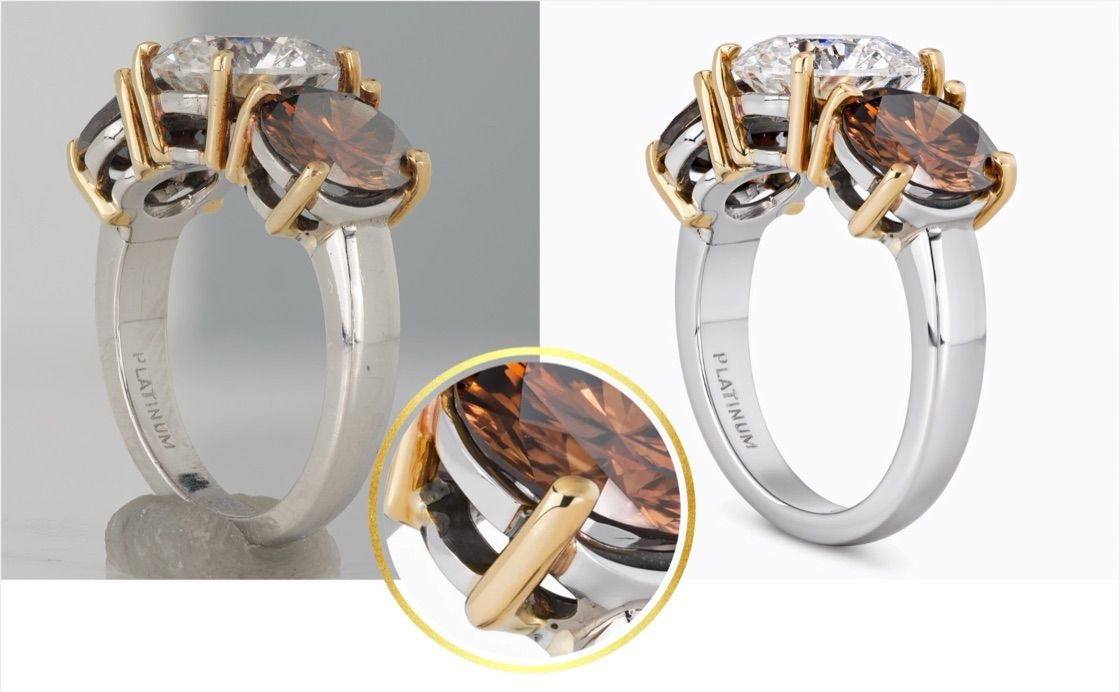
Before and after with the new PRO model in Jewelry Retoucher Precision: a platinum three-stone ring with a diamond and two brown stones, shot on a putty stand against grey, then retouched on clean white, with a close-up of a prong and stone
NeuroViz, an AI jewelry photography platform, shipped two rounds of updates in October 2026. On October 19, Workflows got groups with an On/Off switch, and Necklace Try-On learned to hang a pendant on a chain from a separate photo. On October 23 came a newer Vivid model with a 4K size, a new PRO model in Jewelry Retoucher Precision, and more control over the model and the scene in your photos.
The platinum three-stone ring above shows up three times in this post. It was photographed once, on a putty stand against grey. The new PRO model turned it into a clean white catalog shot, Vivid moved it into an autumn scene, and Jewelry Set Try-On put it on a model’s hand next to a bracelet and a pair of earrings.
What’s new in October 2026, in short:
- Jewelry Retoucher Precision: a new PRO model. Clean white at 1, 4 and 16 megapixels; dust, lint and hairs come off the stones and prongs. Prices unchanged.
- Vivid: a newer model that stays truer to your piece, a new 4K size and a simpler size control, in Jewelry Retoucher Vivid, Creative Jewelry Photographer Vivid and CAD Image Visualizer Vivid.
- SD, PRO and ULTRA: the AI model switch is now in five more apps.
- Preserve Model Look in every try-on, and Preserve reference image in two creative apps.
- Jewelry Set Try-On: tell it what each piece is.
- Necklace Try-On: add a chain photo, and your pendant hangs on that chain.
- Workflows: groups you can switch off, and up to 50 nodes.
- Also new: a Cleanup category for Object Remover in AI Studio, and a Generation settings card in batches.
A new PRO model in Jewelry Retoucher Precision
Precision is the retoucher for catalog work. It keeps your piece where it sits in the frame and stays close to the photo you uploaded. The PRO choice in its AI model switch now runs on a new, updated model.
- Clean white at every size: 1, 4 and 16 megapixels, with a soft, natural shadow. The piece isn’t cut out and pasted onto white, so prongs and fine edges keep their natural look.
- Dust, lint and hairs removed: with Retouch Gemstones on, PRO cleans them off the stones and prongs, while natural inclusions stay. Turn Retouch Gemstones off when an expensive center stone should stay exactly as photographed.
- Closer to your photo, with engravings and hallmarks designed to stay.
You can see all three in the example at the top. The putty stand is gone, the grey background is now white, and the PLATINUM stamp inside the band is still there. The close-up shows a prong and the brown stone after the cleanup.
Prices haven’t changed. PRO costs 20 credits at 1 megapixel, 40 at 4 megapixels and 80 at 16. At $0.02 per credit, that’s $0.40, $0.80 and $1.60 per image. The other two retouching modes, Rescue and Vivid, are compared on our AI jewelry retoucher page.
Open Jewelry Retoucher Precision →
A newer Vivid model, now up to 4K
Vivid is the look for ads and hero images, with bolder color and light than a catalog retouch. Jewelry Retoucher Vivid, Creative Jewelry Photographer Vivid and CAD Image Visualizer Vivid now run on our newest Vivid model.
- Truer to your piece: shape, stones and metal stay closer to your photo.
- A new 4K size: about 16 megapixels, for print, banners and zoom. A 4K image costs 100 credits and takes 2 to 5 minutes.
- A simpler size control: pick a Resolution (1K, 2K or 4K) and an Aspect ratio (Square, Portrait, Landscape or Wide), or Match input to keep your photo’s shape.
Creative scenes keep your pose: the piece keeps the angle you photographed. To show it another way, say so in Instructions.
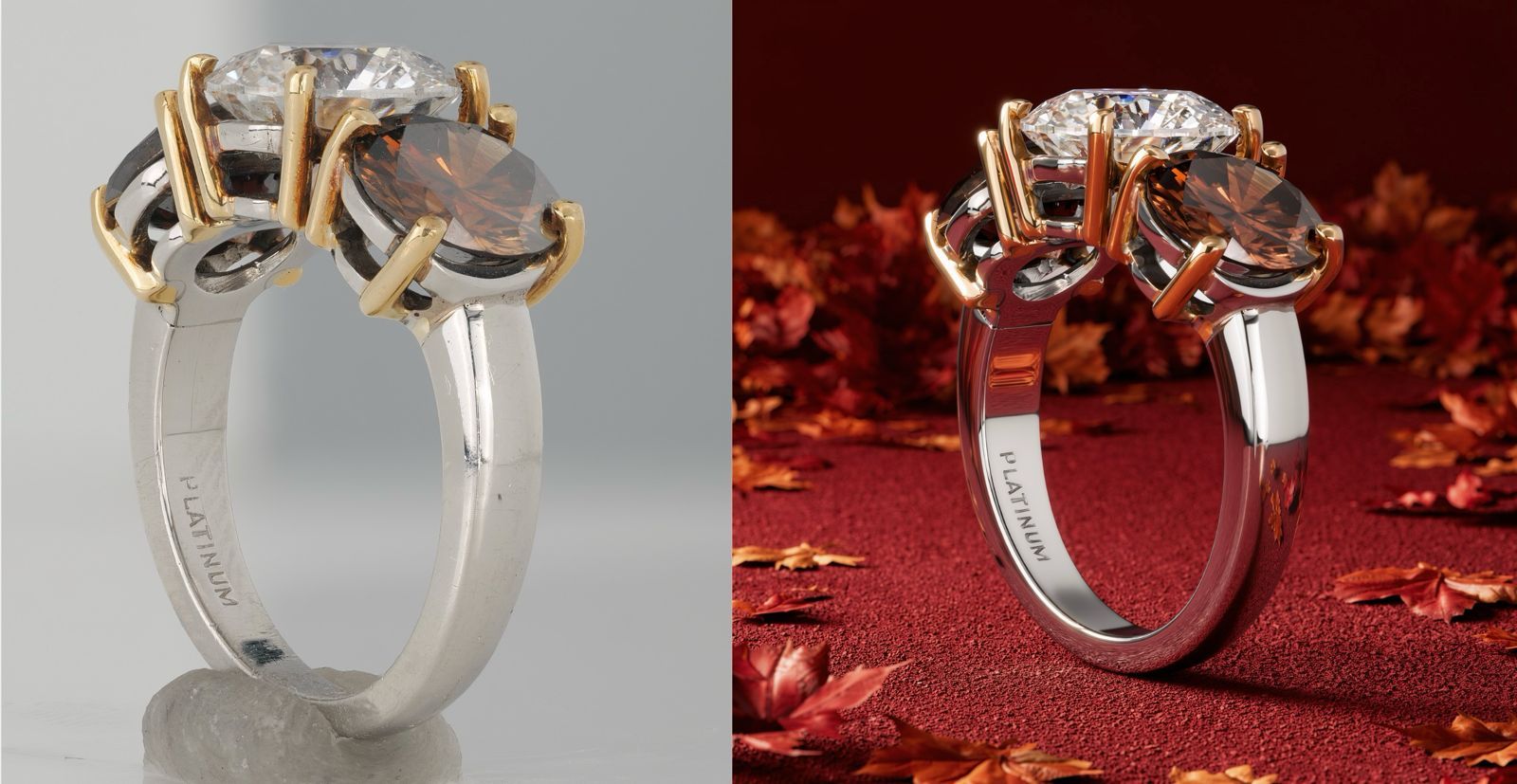
The same platinum three-stone ring before and after the new Vivid model: on the left, the raw photo on a putty stand against a grey background; on the right, the ring at the same angle on a red surface with autumn maple leaves
- Here’s the same ring, from the same raw photo. The new Vivid model took it off the putty stand and set it on a red surface among autumn leaves, without turning it. The camera angle and the PLATINUM stamp on the band match the original.
- 1K and 2K cost the same as before: 25 and 40 credits, or $0.50 and $0.80 at $0.02 per credit. The new 4K size is 100 credits, about $2.00. For styled scenes, see creative jewelry photography; for turning CAD files into photos, see the 3D CAD Visualizer.
- Open Jewelry Retoucher Vivid →
SD, PRO and ULTRA in five more apps
- Creative Jewelry Photographer V1, Creative Photographer, Jewelry Modifier Pro, Retoucher Pro for Marketplaces and Jewelry Price Changer (Automated) now have the same AI model switch:
- SD: the fastest, and the default.
- PRO: the most faithful to your product (colors, fine details, label text), now up to 8 megapixels (shown as 3K).
- ULTRA: up to 16 megapixels.
- A practical note from the app itself: SD keeps your own scene or jewelry box closely, but stone colors can come out softer than in your photo. When the stones have to match the real piece, pick PRO. Each app prices the three models a little differently, and the Generate button shows the cost of your current settings before you run.
Keep your model, or keep your scene
- Two switches decide how closely NeuroViz follows your reference photos.
- Preserve Model Look is now in every try-on: Rings Try On, Earrings Try On, Earrings Try-On Studio, Necklace Try-On, Necklace Try-On Studio, Bracelet Try-On, Watch Try-On, Jewelry Set Try-On, Fashion Model Studio and Product + Model Studio.
- Off (the default): your model photo inspires a look-alike.
- On: the result keeps your model’s look. Written instructions can still change details of their appearance.
- Switch it on when you shoot a collection with your own model or brand ambassador and want the same face across every listing. Use photos of people who have agreed to appear in your marketing.
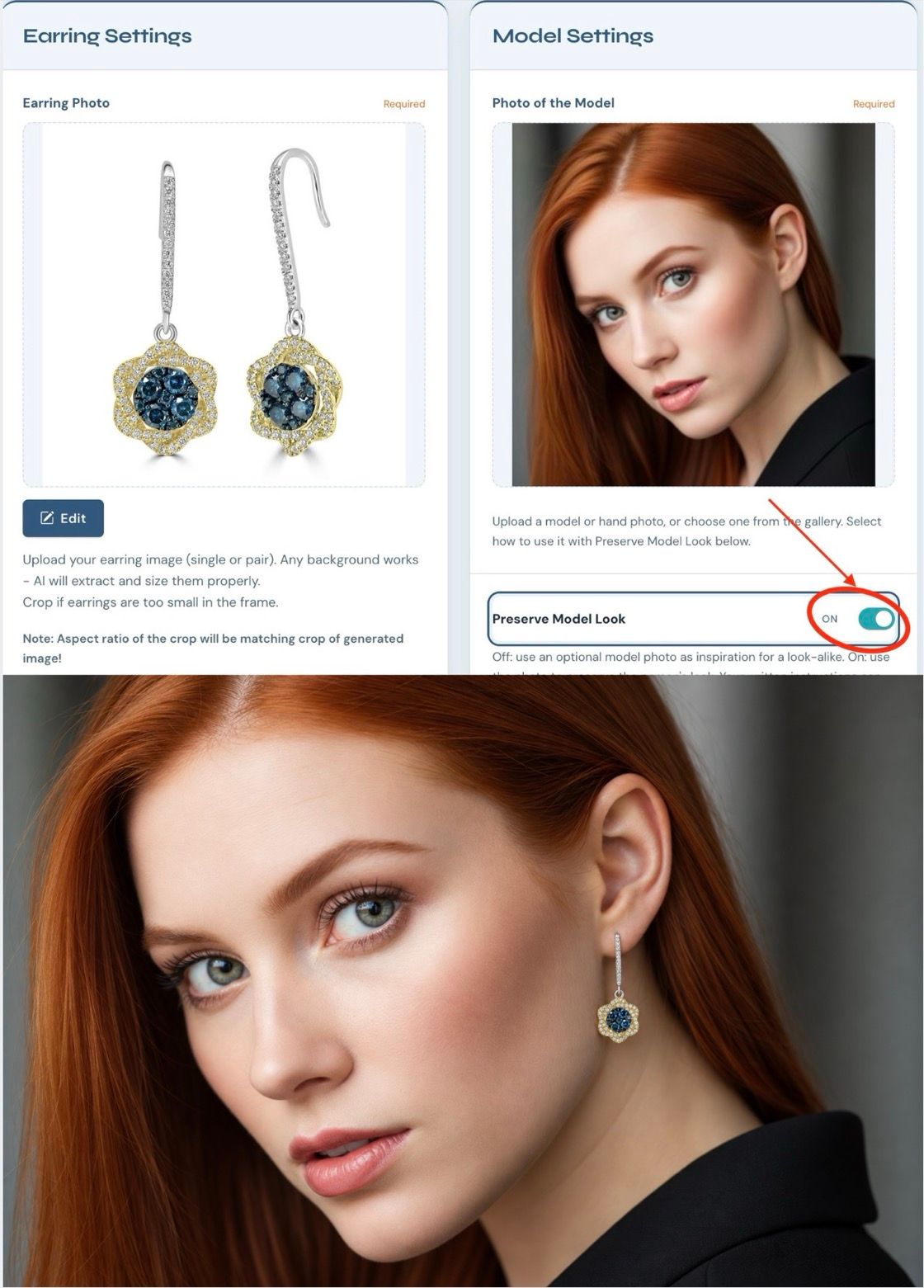
Earrings Try On with Preserve Model Look switched on: the earring photo and the model photo in the app, and below, the result with the same red-haired model wearing the blue and yellow gold flower drop earrings
Preserve reference image is in Creative Jewelry Photographer V1 and Creative Photographer, and it’s on by default. We keep your reference scene or jewelry box as closely as possible, including the brand name on the box, and place your jewelry in it. Small differences can remain. Switch it off and the reference becomes only inspiration for a new scene in its style.
More on how on-model generation works for each piece type is on our jewelry virtual try-on page.
Jewelry Set Try-On: say what each piece is
Under each photo in Jewelry Set Try-On there’s now a What is this piece? choice: Ring, Necklace, Bracelet, Earrings, or Custom for anything else (“brooch”, “anklet”). Every piece is then worn where it belongs, even a pendant photographed without its chain or a single earring. It’s optional and free. Leave it empty and the app identifies the piece from the photo, as before.
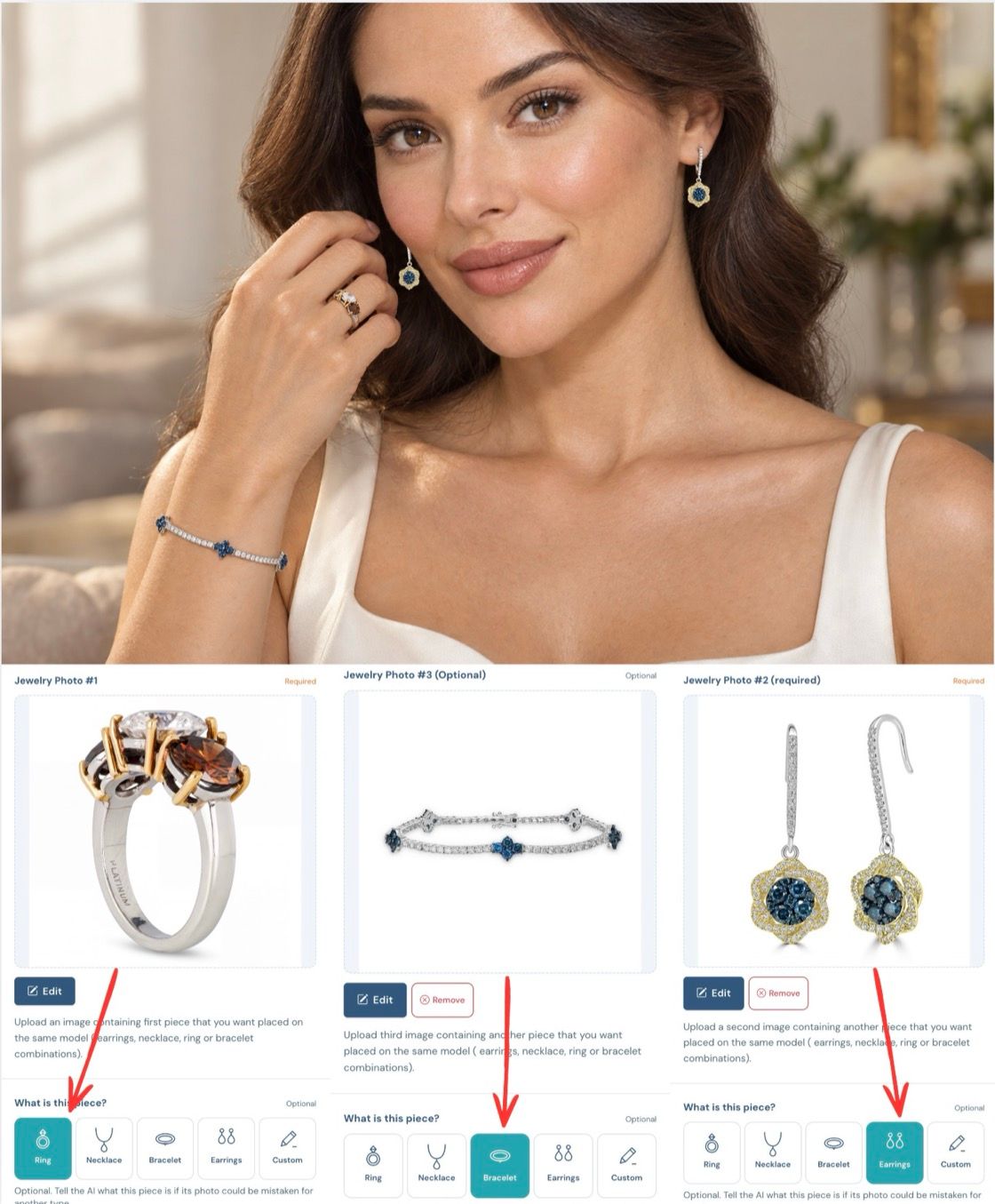
Jewelry Set Try-On: the three-stone ring, a tennis bracelet with blue flower stations and the blue drop earrings, with Ring, Bracelet and Earrings picked under each photo, and the result with all three worn by one model
This is where the ring from the top of the post ends up. Three separate product photos, one generation: the ring on the finger, the bracelet on the wrist and the earrings on the model.
Hang your pendant on any chain
Pendant and chain photographed separately? Necklace Try-On and Necklace Try-On Studio now take an optional Chain photo: a photo of the chain on its own.
- How it works: add your pendant in Necklace or Pendant Image and the chain in Chain photo (optional). Your pendant hangs on that chain from its own bail. Any chain in the pendant photo is replaced, so the result shows exactly one chain.
- The chain keeps its look: link style, thickness, metal color, finish and clasp.
- Length: a natural length, just below the collarbones (about 45 cm / 18 in). For another length, write it in the instructions, for example “50 cm chain”.
- One pendant, every chain you sell: run it once with each chain photo and show every option on your product page.
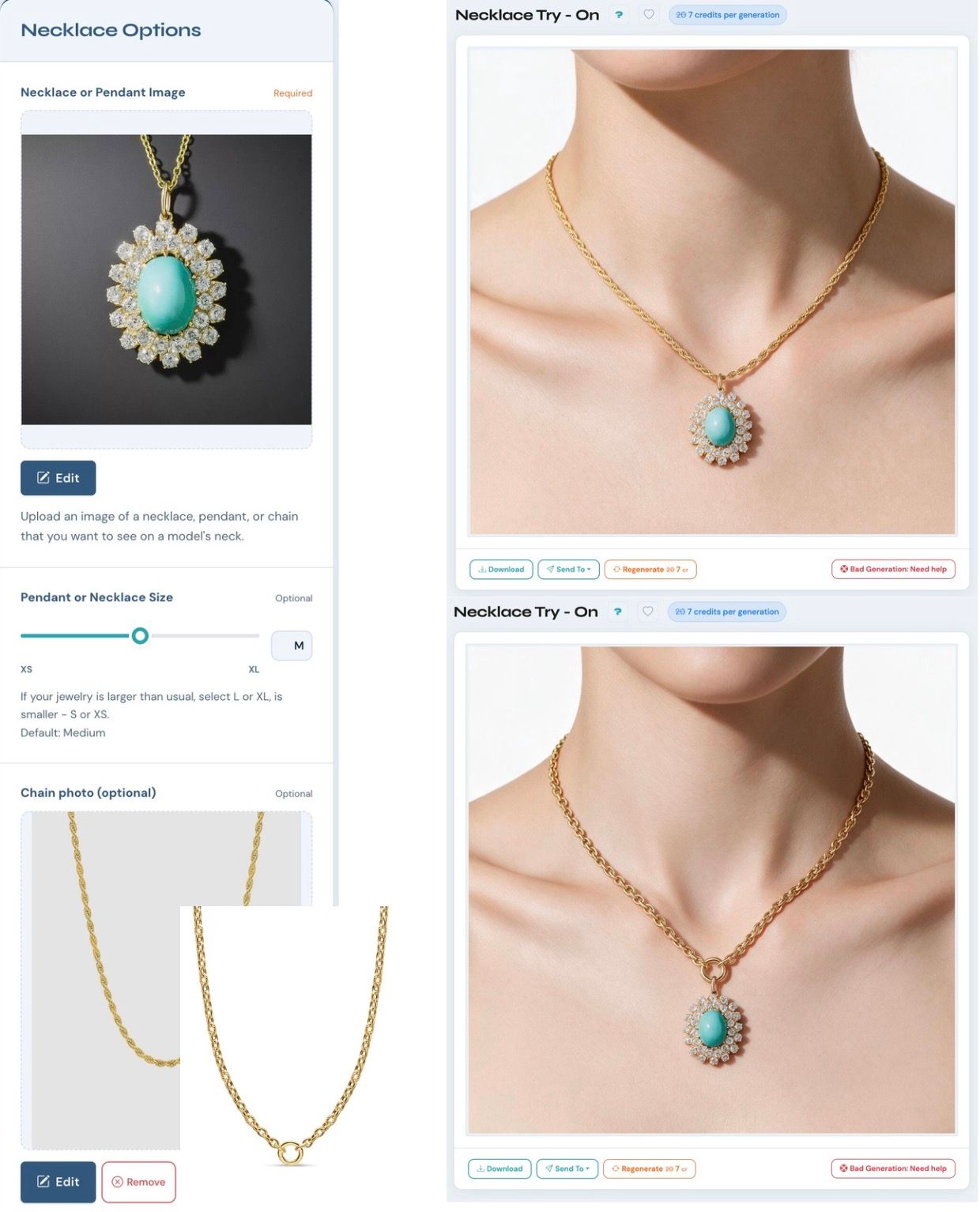
Necklace Try-On with a turquoise and diamond pendant and an optional chain photo: the same pendant on a gold rope chain and on a gold cable chain
Leave the chain photo empty when your pendant already has the chain you want, and everything works as before. A chain photo doesn’t change the price. It also works in AI Studio, in the Necklace Try-On step of Workflows, in our Shopify app and through the API.
Necklace Try-On Studio also has a new, closer placement view of the neck and shoulders, so small pendants are easier to place and size.
Workflows: groups, an On/Off switch and room for 50 nodes
Workflows chains NeuroViz apps on one canvas, so a photo can go from retouch to try-on to video in a single run. Long pipelines are now much easier to read and to run in parts.
- Groups: select nodes with ⌘-click (Ctrl-click on Windows) or Shift-drag, then press ⌘G (Ctrl+G) or click Group in the toolbar. Give the group a title, a note and a color, and drag its header to move everything inside it.
- On / Off: switch a group off and all its steps are skipped. They cost 0 credits, and the image passes straight through to the next step. Keep alternative versions side by side and run only the one you need, or park a video branch until you want it.
- Up to 50 nodes: twice the old limit of 25. Steps, Load images and notes count; wires and groups don’t.
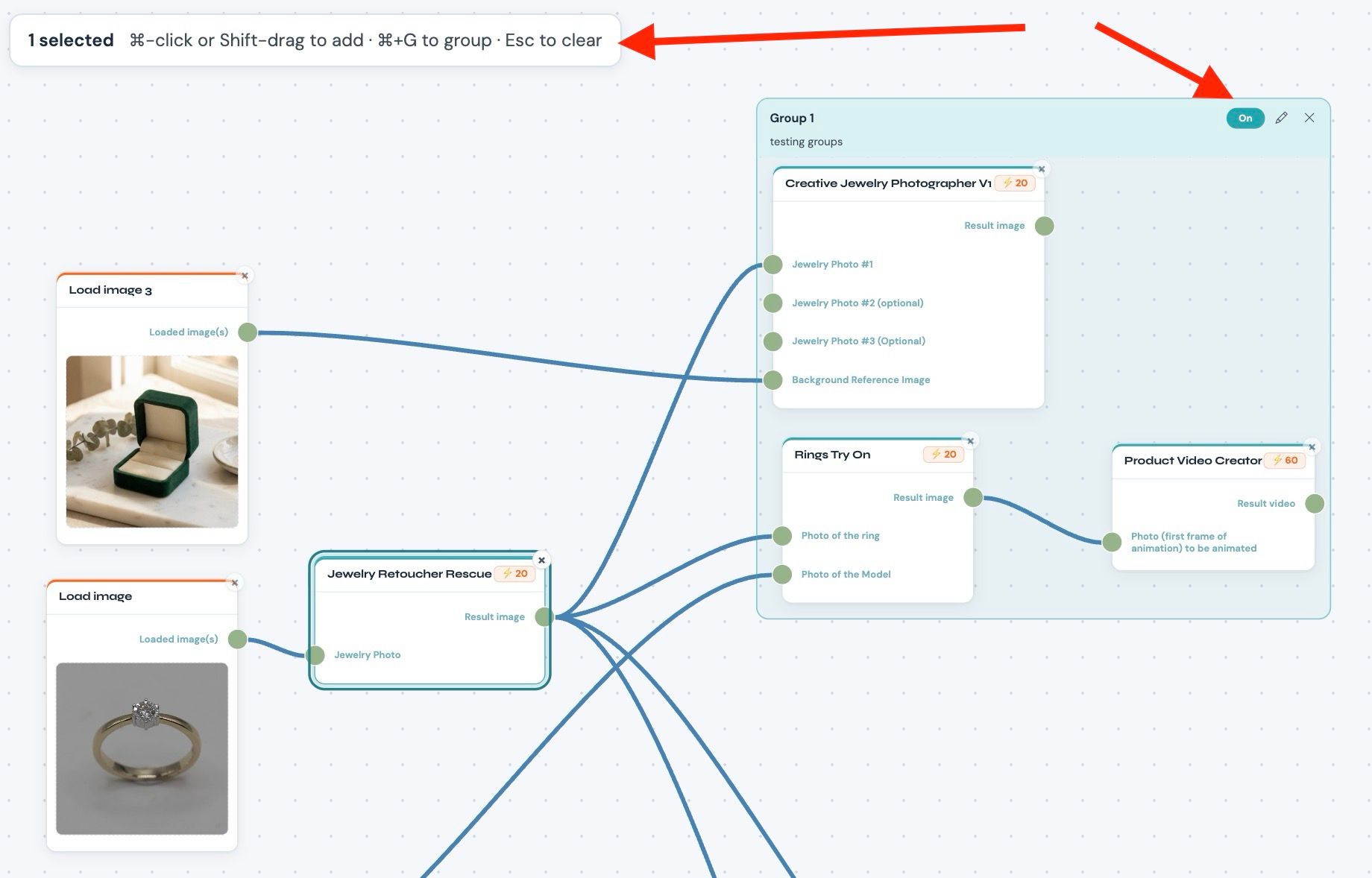
NeuroViz Workflows canvas: a group frame with an On switch holding a creative photo step, a ring try-on step and a video step, fed by a Jewelry Retoucher Rescue step and two Load image nodes
The Properties panel is tidier too. Settings follow the same order as in the app itself, and the slimmer panel leaves more room for your canvas.
Also new
- Object Remover in AI Studio: the new Cleanup category erases a hand, a prop, a price tag or a background object.
- Batches: open a batch and a Generation settings card at the top shows the settings every image in it was made with.
What do the October updates cost?
| Update | Credits | At $0.02 per credit |
|---|---|---|
| Vivid, 1K / 2K | 25 / 40 (unchanged) | $0.50 / $0.80 |
| Vivid, 4K (new) | 100 | $2.00 |
| Precision PRO, 1 / 4 / 16 megapixels | 20 / 40 / 80 (unchanged) | $0.40 / $0.80 / $1.60 |
| Chain photo in Necklace Try-On | no extra charge | $0 |
| “What is this piece?” in Jewelry Set Try-On | no extra charge | $0 |
| Preserve Model Look, Preserve reference image | no extra charge | $0 |
| A workflow group switched off | 0 for every step inside | $0 |
Dollar figures use $0.02 per credit, the rate on a $500 pay-as-you-go purchase. Smaller purchases cost up to $0.04 per credit, and credits are valid for 12 months. Current rates are on the pricing page. If you’re comparing NeuroViz with other tools, our roundup of AI jewelry photo editing tools is kept up to date.
FAQ
What’s new in NeuroViz in October 2026?
A new PRO model in Jewelry Retoucher Precision; a newer Vivid model with a 4K size in Jewelry Retoucher Vivid, Creative Jewelry Photographer Vivid and CAD Image Visualizer Vivid; the SD, PRO and ULTRA model switch in five more apps; Preserve Model Look in every try-on; piece types in Jewelry Set Try-On; a chain photo in Necklace Try-On; and groups with an On/Off switch in Workflows.
How much does a 4K Vivid image cost?
100 credits, about $2.00 at $0.02 per credit. A 4K image is about 16 megapixels and takes 2 to 5 minutes. 1K and 2K still cost 25 and 40 credits.
Can a jewelry try-on keep my own model’s face?
Yes. Upload the model photo and switch on Preserve Model Look. With the switch off, which is the default, the photo only inspires a look-alike model.
Can I show one pendant on different chains?
Yes. In Necklace Try-On or Necklace Try-On Studio, add the pendant photo and a photo of the chain on its own. The pendant hangs on that chain, and any chain in the pendant photo is replaced. Run it once for each chain you sell. The chain photo doesn’t change the price.
Do switched-off workflow groups use credits?
No. Every step inside a switched-off group is skipped and costs 0 credits, and the image passes straight through to the next step.
Did Precision prices change with the new PRO model?
No. PRO still costs 20 credits at 1 megapixel, 40 at 4 megapixels and 80 at 16 megapixels.
Try the October updates on your own photos
Take a product photo you already have and run it through the new PRO or Vivid model, or put your pendant on the chains you sell.