NeuroViz in your AI assistant: ask for a retouch, get the finished photo back in the chat.
If you already write listings and answer customers in Claude or ChatGPT, you can now fix the product photos in the same chat. NeuroViz, an AI jewelry photography platform, has a plugin for AI assistants. You give it a photo of your piece, say what you need, and the assistant runs the right NeuroViz tool on that photo. The result comes back in the chat with a button to download it at full size.
It works on any NeuroViz account, free ones included. There’s no API key to copy: you sign in once with your NeuroViz account and approve the connection.
What’s in the NeuroViz plugin
The plugin has two parts, and you install them together.
- The NeuroViz connector. It links your assistant to your NeuroViz account through MCP, an open standard that lets an AI assistant use outside tools. You approve it once on a NeuroViz page.
- Three skills: retouch-jewelry-photo, virtual-try-on and product-video. A skill is a short set of instructions the assistant reads when your request matches it. Ours tell it when NeuroViz fits and which of our apps suits your photo, so you can say “retouch this ring” without naming NeuroViz or picking a tool yourself.
Here’s what you can ask for:
- Retouching. Clean up dust and glare, fix the light, get a clean background. There are three AI jewelry retouchers: Precision keeps a good photo of a clean piece just as it was shot, Rescue is made for worn pieces and imperfect photos, and Vivid gives a richer look for ads and social posts.
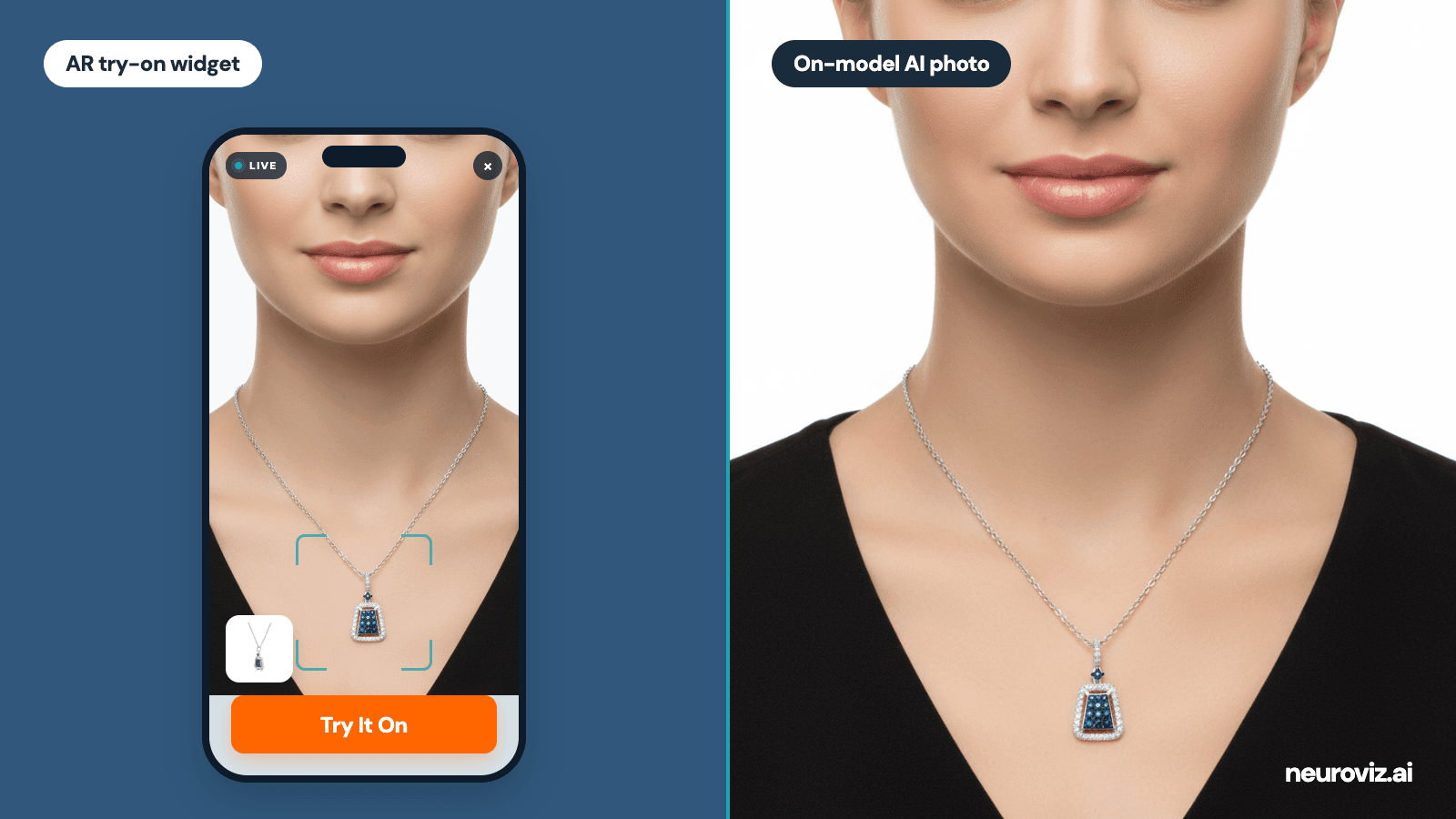
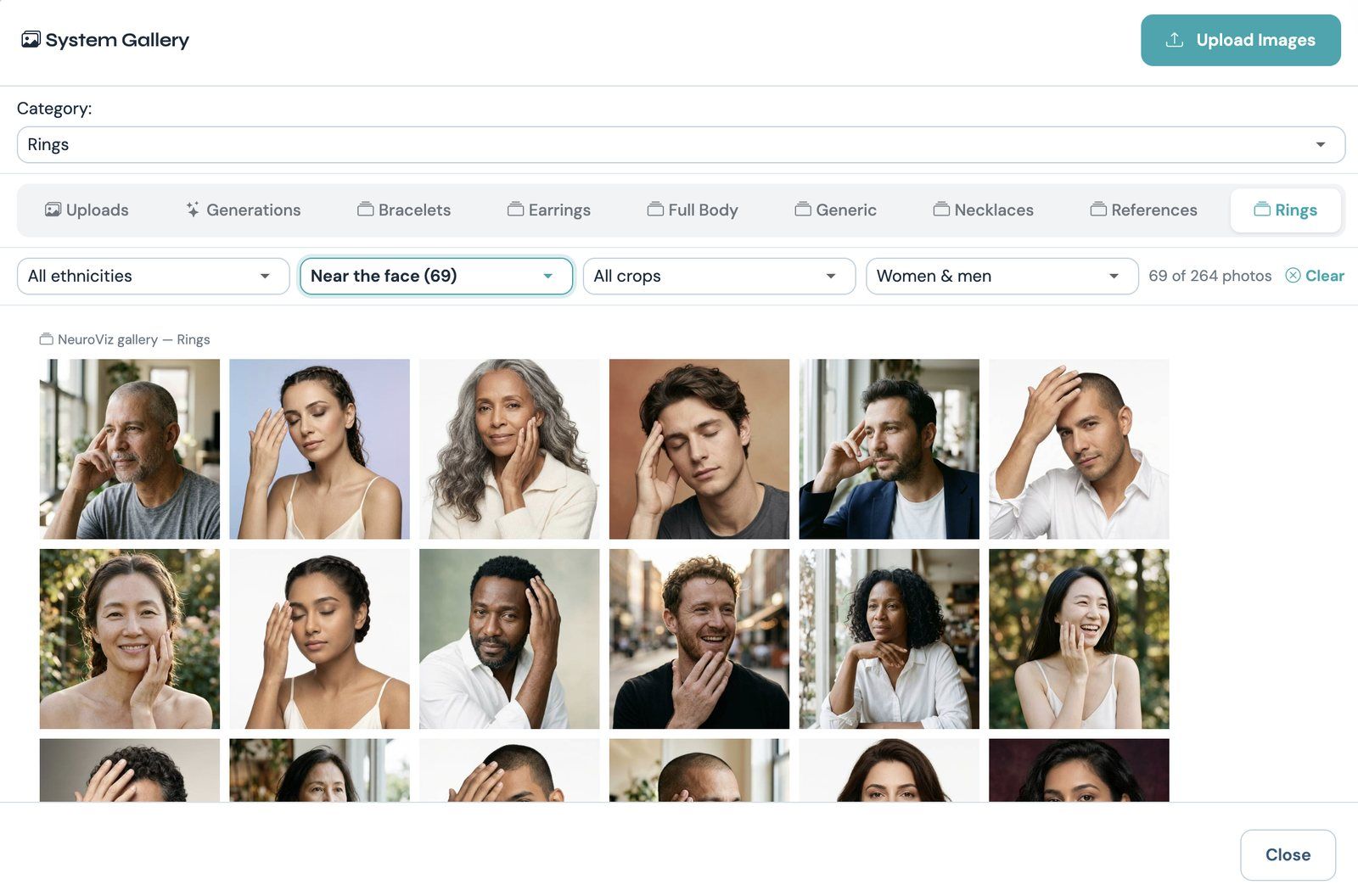
- Virtual try-on. A ring on a hand, or earrings, a necklace, a bracelet or a watch on a model.
- Styled scenes for ads and social posts.
- Product videos. A short turning clip for a product page, or a scene video with camera moves for Reels and ads.
- Other products. Clean marketplace photos, clothing on a model, and removing things you don’t want in the frame.
If you’re still choosing a tool, our comparison of jewelry photo editing tools covers the alternatives too.
What happened when we tried it in Claude
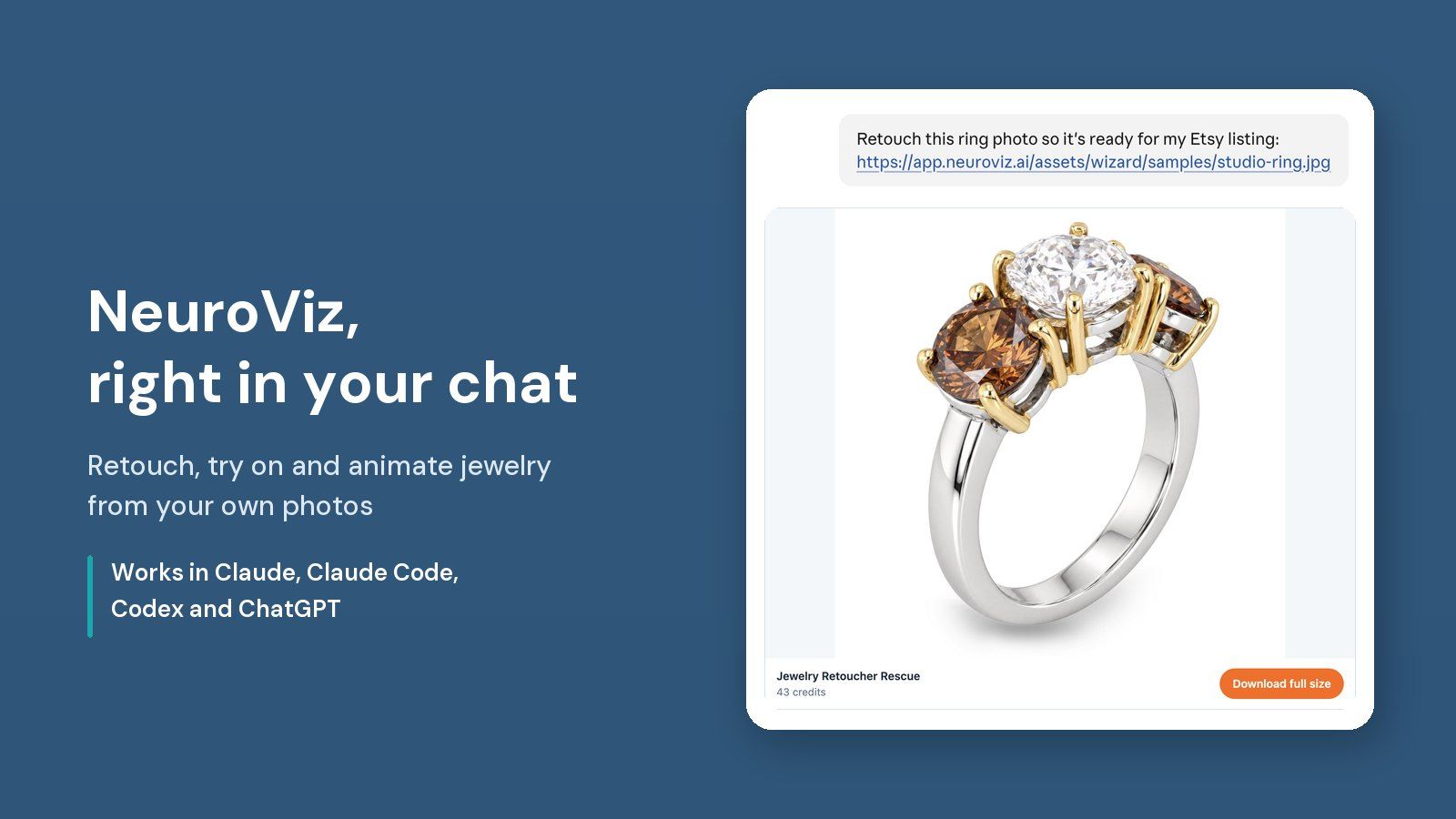
We installed the plugin in Claude on November 21, 2026 and sent one message: “Retouch this ring photo so it’s ready for my Etsy listing,” followed by a link to one of our sample photos. Claude looked at the photo first. It noticed scratches on the band and picked our Rescue retoucher instead of Precision, because Precision keeps the metal exactly as photographed, scratches included. A few minutes later the retouched ring was in the chat as a NeuroViz card. The scratches and the stand were gone, and the stones and prongs matched the original.
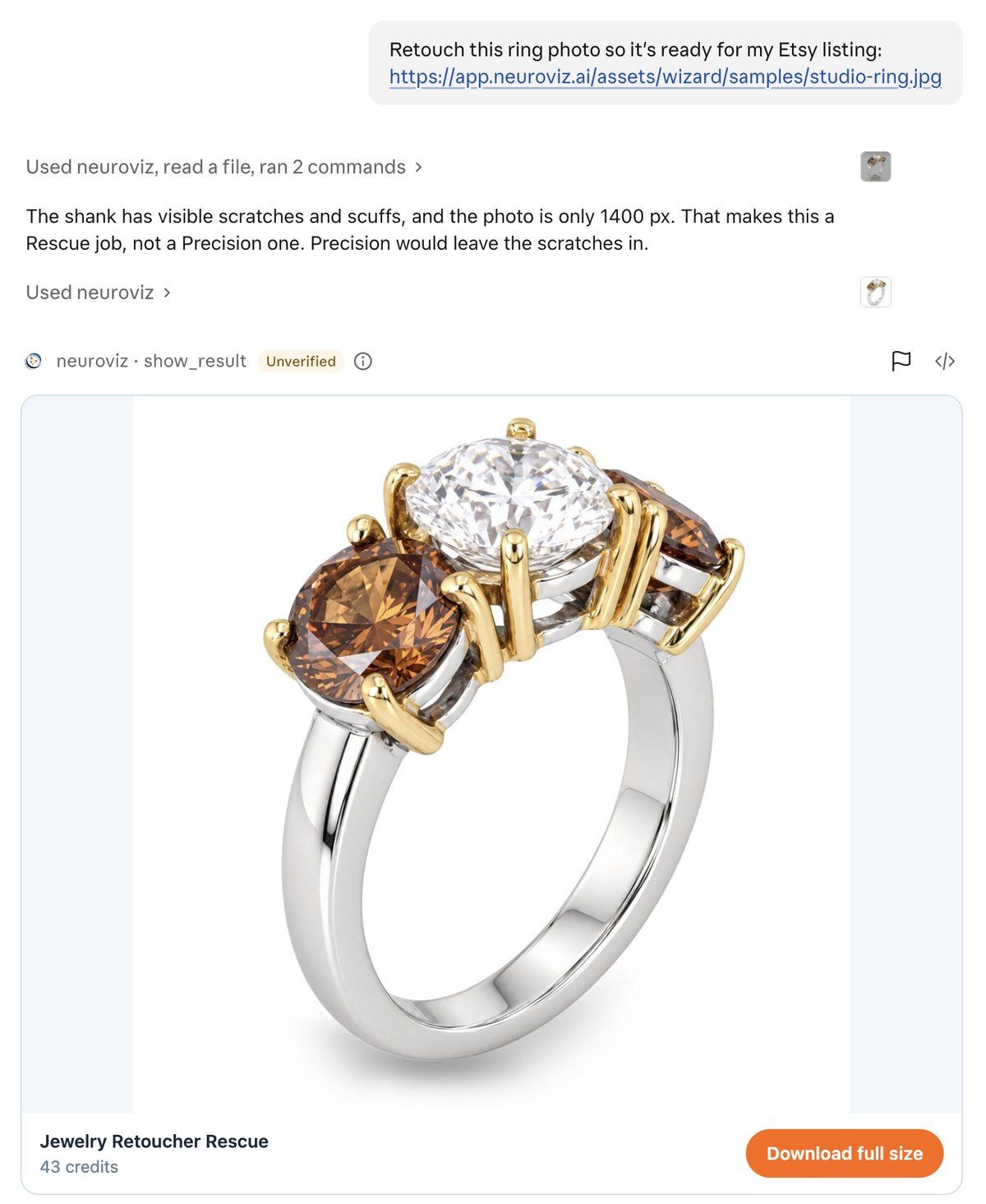
Our test in Claude: one request, a sample photo link, and the result card with a full-size download.
Every job goes the same way:
- The assistant picks the NeuroViz app that fits your photo and your request.
- It looks up the exact cost in credits before it runs the job.
- The result appears in the chat as a NeuroViz card with a Download full size button.
- The run is also saved in your NeuroViz account, like anything you make in the web app.
Jobs use the credits in your NeuroViz account at each tool’s normal price, and only successful runs are charged. Want to approve every job before it starts? Say so in your message: “tell me the cost before you run anything.” Current prices are on our pricing page.
How to add NeuroViz to Claude (web and desktop app)
We went through these steps on claude.ai on November 21, 2026. The Claude desktop app uses the same Plugins page.
- In Claude’s sidebar, open Plugins.
- Choose Add, then Add marketplace, then Add from a repository.
- In the URL field, type neurovizAI/neuroviz-plugin, pick it from the list and choose Sync.
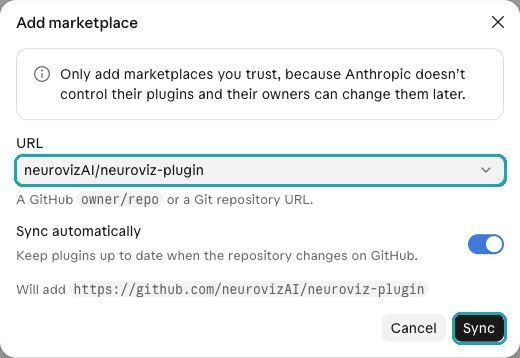
Claude’s Add marketplace window with the NeuroViz repository selected.
4. Neuroviz now shows up in the list. Open it and choose Add.
5. Under Connectors, next to neuroviz, choose Connect. Claude shows the connector’s address and its sign-in settings. Leave them as they are, choose Continue, then Add.
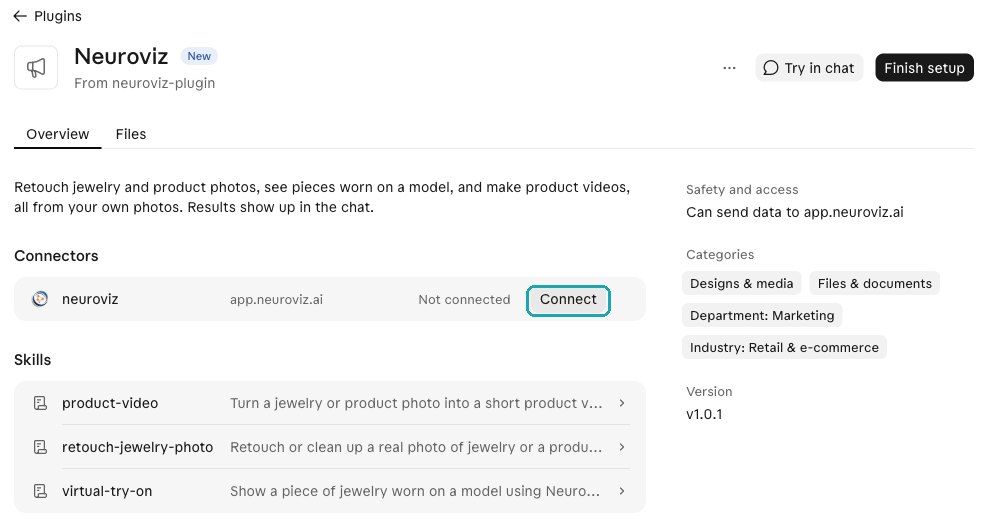
The NeuroViz plugin page in Claude: one connector and three skills.
6. A NeuroViz page opens. Sign in if you need to and choose Approve. Back in Claude, the connector now says Connected.
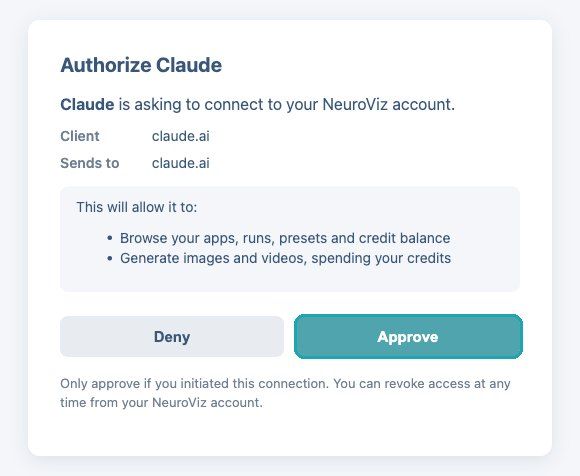
The NeuroViz page where you approve the connection.
Now open a chat and ask. In Claude, share the photo as a link (more on that below). Depending on your Claude settings, Claude may ask your permission the first time it uses each NeuroViz step. Choose Allow once, or Always allow if you’d rather not be asked again.
On Team and Enterprise plans, an Owner may need to allow the marketplace or add the connector first. Once the plugin is on your Claude account, it also shows up in Claude Code on the same account.
No Add marketplace option? Download neuroviz-claude-plugin.zip from the downloads folder of our GitHub repository and use Add, then Upload plugin.
How to add NeuroViz to ChatGPT
NeuroViz isn’t in ChatGPT’s plugin directory at the moment. You can still add it by hand if your ChatGPT account or workspace allows custom MCP servers:
- Go to chatgpt.com/plugins, select +, then Add custom MCP server.
- Name it NeuroViz and enter https://app.neuroviz.ai/mcp. Set authentication to OAuth, accept the warning and choose Create as a plugin.
- Sign in with your NeuroViz account and approve.
- Add the three skills: at chatgpt.com/skills choose Add and upload the three skill ZIP files from the downloads folder of our GitHub repository.
The skills matter in ChatGPT. Without them, NeuroViz runs only when you pick it with @. With them, ChatGPT reached for NeuroViz on its own in our tests. In ChatGPT you can attach the photo straight to your message.
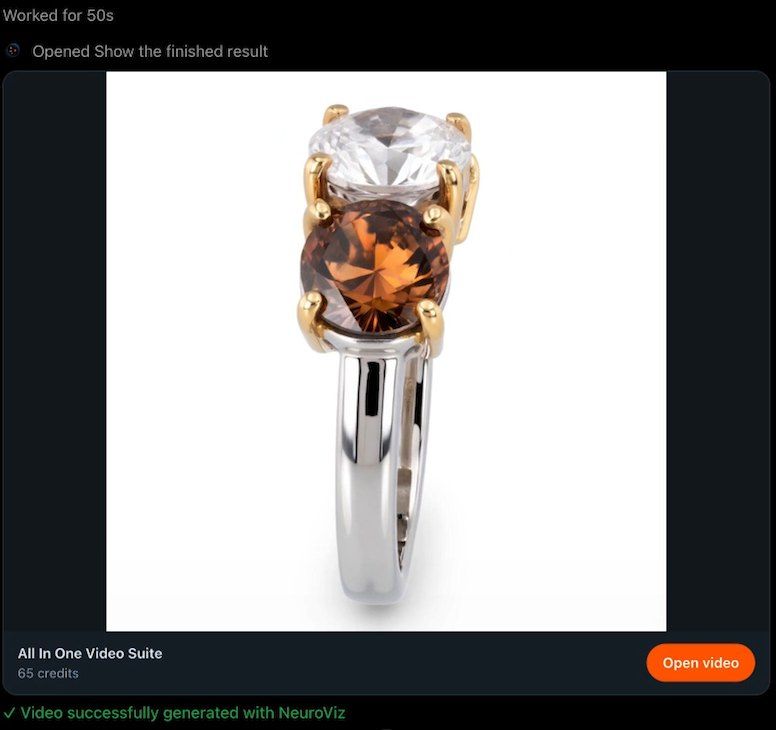
A product video made in ChatGPT, returned as a NeuroViz card.
How to add NeuroViz to Claude Code and Codex
In Claude Code, run:
/plugin marketplace add neurovizAI/neuroviz-plugin
/plugin install neuroviz@neuroviz-plugins
Then type /mcp, pick neuroviz, choose Authenticate and approve in your browser. From a regular terminal, the same two steps are:
claude plugin marketplace add neurovizAI/neuroviz-plugin
claude plugin install neuroviz@neuroviz-plugins
If /plugin isn’t available in the Code tab of the Claude desktop app, use the terminal commands, or install the plugin on claude.ai and it syncs to Claude Code.
In Codex, run:
codex plugin marketplace add neurovizAI/neuroviz-plugin
codex plugin add neuroviz@neuroviz-plugins
Sign in with your NeuroViz account when asked. Once the marketplace is added, you can also install NeuroViz from the Plugins Directory in the ChatGPT desktop app (Work mode or Codex).
Any other AI assistant
Cursor and other assistants that support MCP can connect to https://app.neuroviz.ai/mcp as a remote MCP server and sign in with OAuth. The setup for each one is on our MCP setup page. That gives you the connection; the three skills come with the plugin installs above.
Tips before your first job
Attach or link. In ChatGPT, attach the photo to your message. In Claude, Claude Code, Codex and the rest, share a public link to the photo instead (your shop’s image URL, cloud storage or a CDN), because an attached file may not reach NeuroViz there. ChatGPT’s free plan also has a daily attachment limit. If it says you’re out of attachments, paste a link.
Try it on our sample photos. These links work in every assistant:
- https://app.neuroviz.ai/assets/wizard/samples/studio-ring.jpg
- https://app.neuroviz.ai/assets/wizard/samples/phone-ring.jpg
- https://app.neuroviz.ai/assets/wizard/samples/phone-pendant.jpg
- https://app.neuroviz.ai/assets/wizard/samples/phone-bangle.jpg
Start from a real photo. NeuroViz works on a real photo of your product. It won’t invent a piece from a text description, and it isn’t made for portraits.
Check the details. Results are generated, so look over the stones, engraving and fine details before you publish.
Free credits are for testing. New accounts get 80 free credits. Images made with free credits are for testing and evaluation, and the commercial license comes with purchased credits.
Your photos stay yours. Your photos and results stay private to your NeuroViz account, and we don’t use them to train AI models.
Disconnecting. In the NeuroViz app, open Settings and find Connected AI Assistants. Choosing Disconnect there takes effect right away. In Claude, you can also disconnect the connector on the plugin’s page.
FAQ
Do I need an API key to use NeuroViz in Claude or ChatGPT?
No. You sign in with your NeuroViz account on a NeuroViz page and approve the connection. API keys are only needed by people who build their own integrations.
Does the NeuroViz plugin work with a free account?
Yes. The assistant connection works on every NeuroViz account, free ones included. Each job uses the credits on your account.
How much does it cost to use NeuroViz from an AI assistant?
The same as in the NeuroViz web app. Each job uses credits at that tool’s normal price, only successful runs are charged, and there’s no extra fee for the assistant connection. Current prices are on the NeuroViz pricing page.
Where do my results go?
The finished image or video appears in the chat as a NeuroViz card with a download button. The run is also saved in your NeuroViz account.
Can NeuroViz create jewelry from a text description?
No. NeuroViz starts from a real photo of your piece. It retouches it, shows it on a model, places it in a scene or turns it into a video, so the result shows the piece you actually sell.
Which AI assistants work with NeuroViz?
The plugin installs in Claude (web and desktop app), Claude Code and Codex. In ChatGPT you can add it by hand if your account allows custom MCP servers. Other assistants that support MCP, such as Cursor, can connect to the NeuroViz server directly.
Can I attach a photo, or do I need a link?
In ChatGPT you can attach the photo to your message. In Claude, Claude Code, Codex and other assistants, share a public link to the photo, because an attached file may not reach NeuroViz there.
Try it on a sample ring
Create your NeuroViz account, install the plugin in the assistant you already use, and paste this into a new chat: “Retouch this ring photo so it’s ready for my Etsy listing: https://app.neuroviz.ai/assets/wizard/samples/studio-ring.jpg”