1. Scene Video Creator - New Application
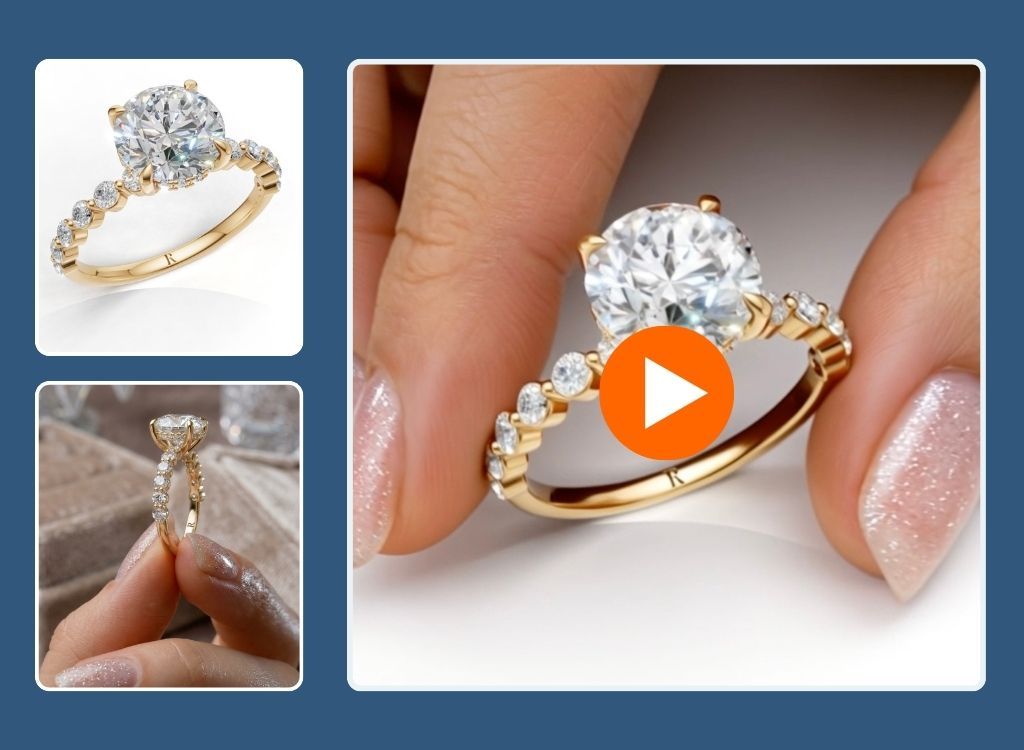
Turn two images into cinematic video.
How It Works
Upload first frame. Upload last frame. AI creates smooth HD video that transitions between them. Professional camera work and lighting. Up to 15 seconds per video.
Two Quality Modes
Standard: Faster generation. Good visual quality. Great for previews and testing ideas.
Pro: Higher visual quality. Smoother motion. Richer detail. Best for final production and customer-facing content.
Optional Prompt
Describe mood, style, or animation. Examples: "dramatic lighting", "slow and elegant", "model smiles at the camera". Leave empty for automatic creative direction.
Details
Cost: 80 credits per generation.
Try it: app.neuroviz.ai
2. Color Selector for Jewelry Modifier
Jewelry Modifier now includes visual color selector.
What Changed
Pick exact color for metal changes, stone swaps, or finish adjustments before generating. Precise control over modification results. No more guessing or describing colors in text prompts.
Important Note
Jewelry Modifier changes elements of your jewelry. Different metals. Stone colors. Design variations.
Not a retouching tool. For retouching, use Jewelry Retoucher Pro.
3. Generations Gallery as Input
Use any previously generated image as input for another app.
How It Works
Click "My Generations" when selecting image. Pick any result from previous app. Retouched photos. Try-on images. Scene generations. Use directly.
No downloading and re-uploading between apps. Filter by date, tag, or source app to find images fast.
Example Workflow
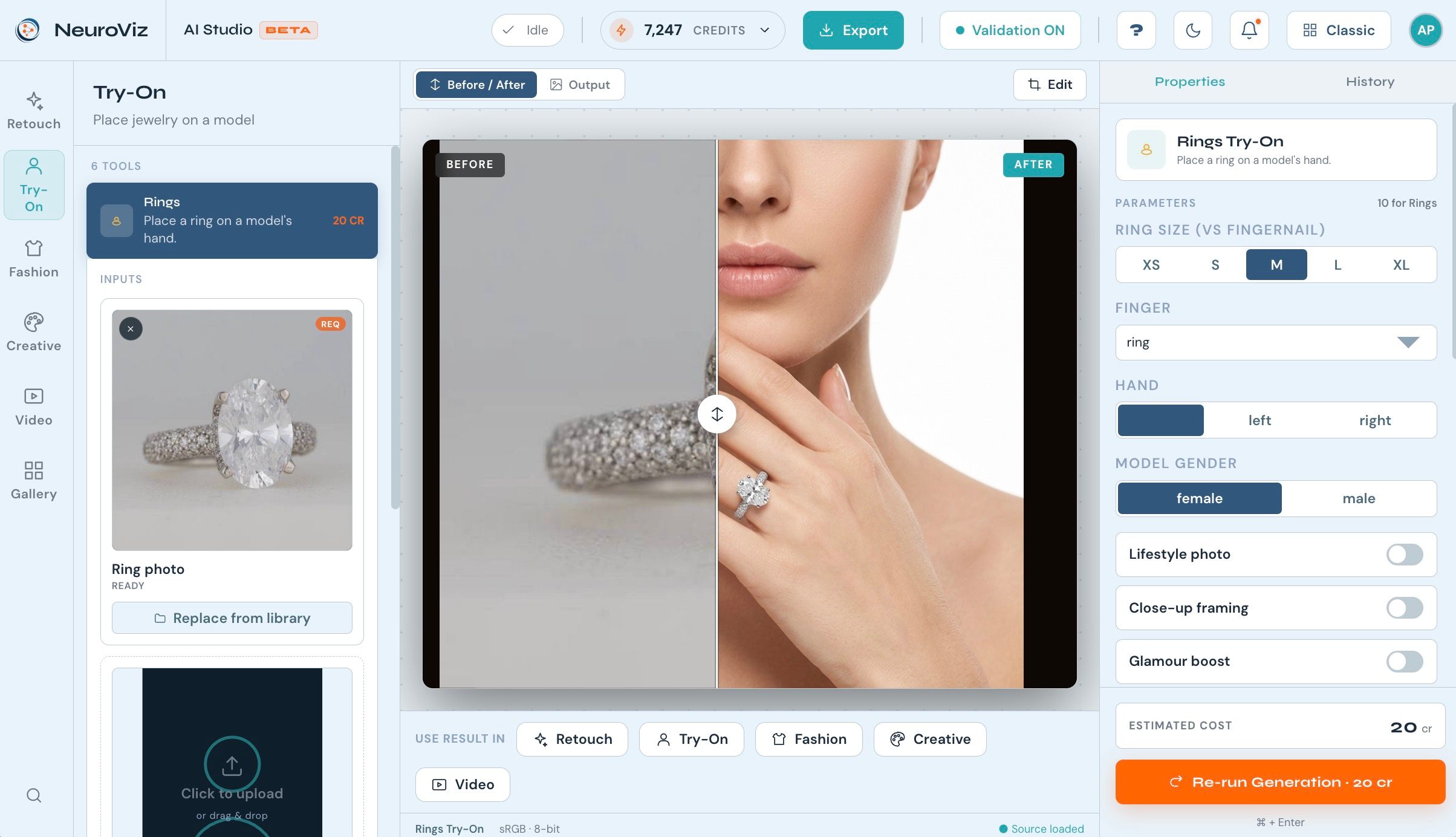
Retouch ring in Jewelry Retoucher Pro. Select retouched image from gallery. Send to Virtual Try-On. Generate model wearing retouched ring. All without leaving platform.
Additional Feature
Drag and drop now available for all image input fields across every app. No file browser needed.
4. Credit Expiration Warning
Automatic notification 5 days before credits expire.
What You Get
Time to use remaining credits or renew plan before anything is lost. Warning appears inside app dashboard. No credits will expire without notice.
5. Combo Try-On Fix
Fixed issues with Combo Virtual Try-On that sometimes generated extra limbs and body imperfections.
What Changed
AI model now produces clean, anatomically correct results when combining multiple jewelry pieces on one model. Known issue reported by several users. Now resolved.
Custom Aspect Ratios on HQ Models
HQ Try-On and Retouching models now support custom aspect ratios up to 1:8.
What This Enables
Generate multi-image compositions in single run. Multiple angles. Close-ups. Full shots. Combined into one vertical or horizontal strip.
One generation. Multiple views of same piece. Same model. Same lighting. Same scene.
Use Cases
Social media carousels. Product listing galleries. E-commerce strips showing detail and context together.
No need to run separate generations and stitch afterward.

Availability
All updates live now.
Available on Pro, Pro Plus, Agency, and Enterprise plans.
Access: app.neuroviz.ai
Cross-App Workflow Example
Complete production pipeline without leaving platform:
Step 1: Retouch jewelry photo (Jewelry Retoucher Pro) Step 2: Select retouched version from Generations Gallery Step 3: Create try-on (Virtual Try-On) Step 4: Select try-on from Gallery Step 5: Generate lifestyle scene (Scene Generator) Step 6: Select scene from Gallery Step 7: Create video (Scene Video Creator)
Build complete workflows. Retouch, try-on, scene creation, video. Without ever leaving app or touching file manager.
Getting Started
Scene Video Creator: Upload two jewelry images. Generate video transition. 80 credits per generation.
Gallery Workflow: Use "My Generations" button in any app. Select previous results as input.
Color Selector: Open Jewelry Modifier. Click color picker. Select exact shade.
Custom Ratios: Choose aspect ratio up to 1:8 in HQ models. Generate multi-view compositions.
All features available now in your dashboard.
Questions? Contact support@neuroviz.ai